Set Up Jitsi With Audacity
Published on: 2020-04-22
Next week I will start teaching an online course in sound technology at
Tallinn University, and I have decided to use
Audacity and Jitsi for my
video conferencing needs. When setting this up on my Arch Linux laptop I
discovered a little problem: there is no easy way to connect Audacity to
Jitsi's sound input, which is a bit inconvenient when teaching sound.
Normally I would do this kind of patching between applications in
Jack, using the excellent patchbay included
in qjackctl. However, this proved problematic, as Audacity creates new
inputs and outputs as needed whenever you press play or record. This
leaves you in a situation where you constantly have to reconnect
Audacity's output to Jitsi's input whenever you do anything at all. Very
messy and unsustainable. To begin with I tried to set up an
alsa loopback device to create a virtual soundcard that would show up
as a jack client, but I couldn't make it work. So in the end I swallowed
the bitter pill of installing pulseaudio on my system… A bit painful
for a software purist like myself, but if that's the way to get the job
done then that's the way it has to be.
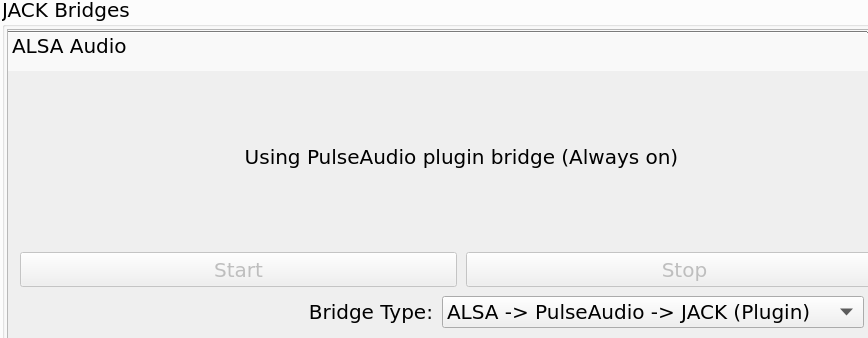
To make pulseaudio sit well with jack you can use Cadence to set
up a jack bridge like this:
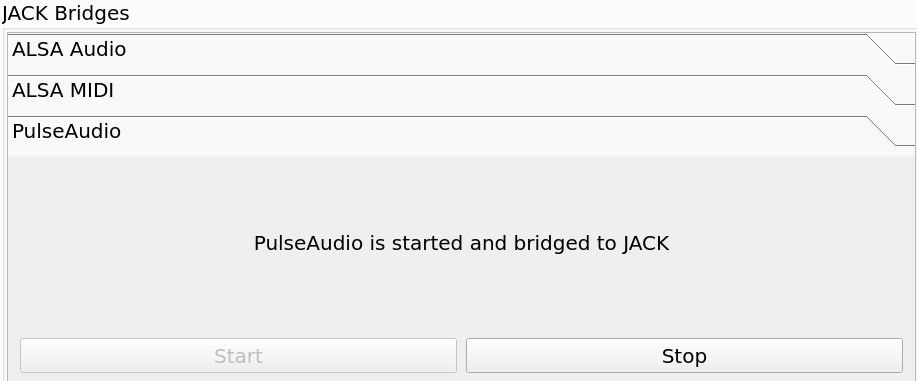
Then you need to make sure that the pulseaudio bridge is on:
So far so good. Now you should be able to select pulseaudio as an
input to Jitsi:

, in Audacity, you can choose to send your audio out to system or
to PulseAudio Jack source.

If you select the latter, the other Jitsi participants will be able to hear the output, but you will not. Not good. This is where SuperCollider comes to the rescue.
First of all, launch your favorite SuperCollider editor. I use scnvim, but the official SuperCollider IDE will also do.
Run this little snippet of code:
s.waitForBoot({ Ndef(\route, {In.ar(2, 2)}).play });
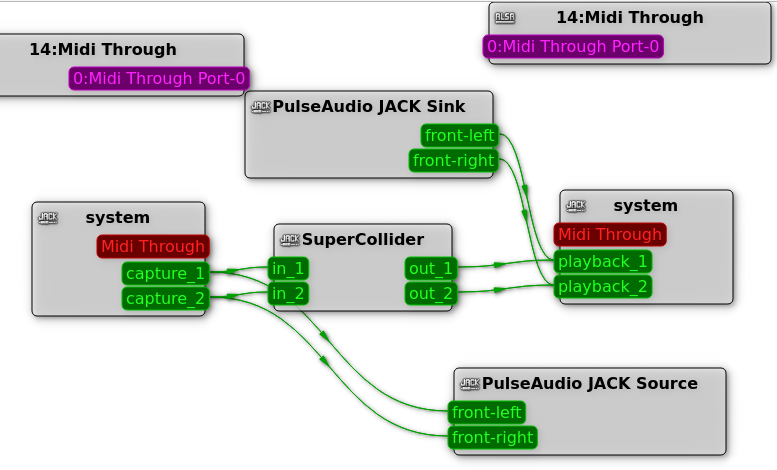
This will give you a simple patchbay with 2 channels in and 2 channels
out (depending on how you have set up SuperCollider, of course…). In
qjackctl -> graph your routing now should look something like this:
Now is a good time to restart Audacity. You will notice that the output selector now has SuperCollider as an option. Awesome! Select and connect.

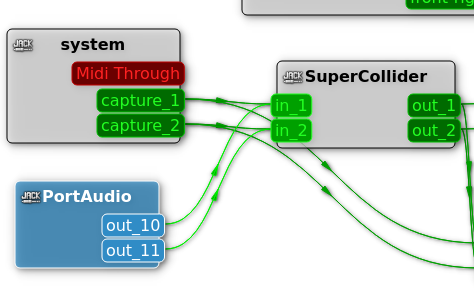
We are almost there. Return to qjackctl and connect SuperCollider's
output to PulseAudio like this:
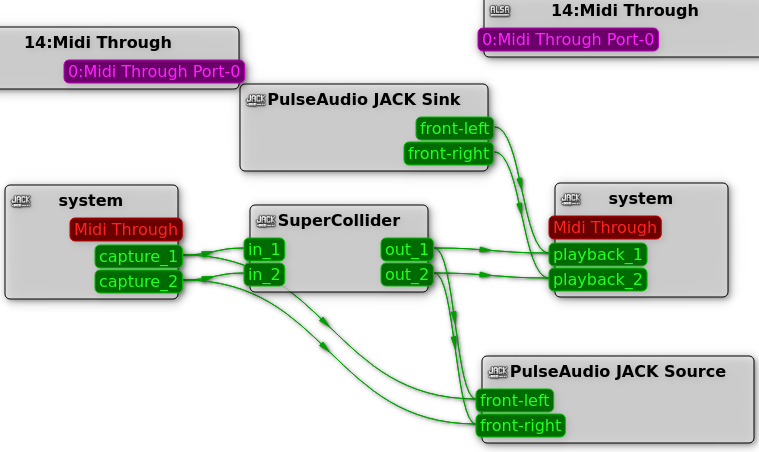
you now start playing anything in Audacity, your output will be routed to Jitsi, AND you will be able to hear it yourself.
Screen Sharing
Unfortunately there seems to be no way to share Audacity's screen on
Jitsi in Wayland, so for these meetings I have to go back to the 20th
century and do it from xorg and i3wm instead. Oh well…
SuperCollider Alternative
After trialling the setup with a bunch of students I bumped into the
issue that the levels from Audacity and the dry mic levels were very
different, also due to a problem I had with the sound-card. In addition
I wanted a bit more feedback on what the different levels looked like.
In the end I discovered jack_mixer, a truly awesome utility for mixing
different jack clients. jack_mixer allows you to create new input and
output channels at will, so I ended up setting one stereo input track
for audacity and one mono track for my microphone. Additionally I added
an extra output channel, so that I could send one level to my headphones
through the system output and one level to PulseAudio Jack source. I
replaced my ad-hoc SuperCollider patcher with this and keep it open
during the lectures, so that I can see what is going on at all times.